Whitehats Social Night 2020 Writeup
Writeup for Whitehats Social Night 2020 mini-CTF

Encoding
et tu brutus?
Points: 100
Prompt: oz{ksdsv_ak_sdkg_yggv}
My Attempt
We are given a prompt that resembles a flag, but we know nothing of how to get it into a flag. Googling "et tu brutus", we find that it is the last words of Julius Caesar, who happens to also be famous for the Caesar Cipher aka ROT13.
Going over to CyberChef, my favourite tool for dealing with conversions and encodings, we throw in ROT13 and the given prompt. As ROT13 is fairly simple, we can just bruteforce the key which gives us the flag:
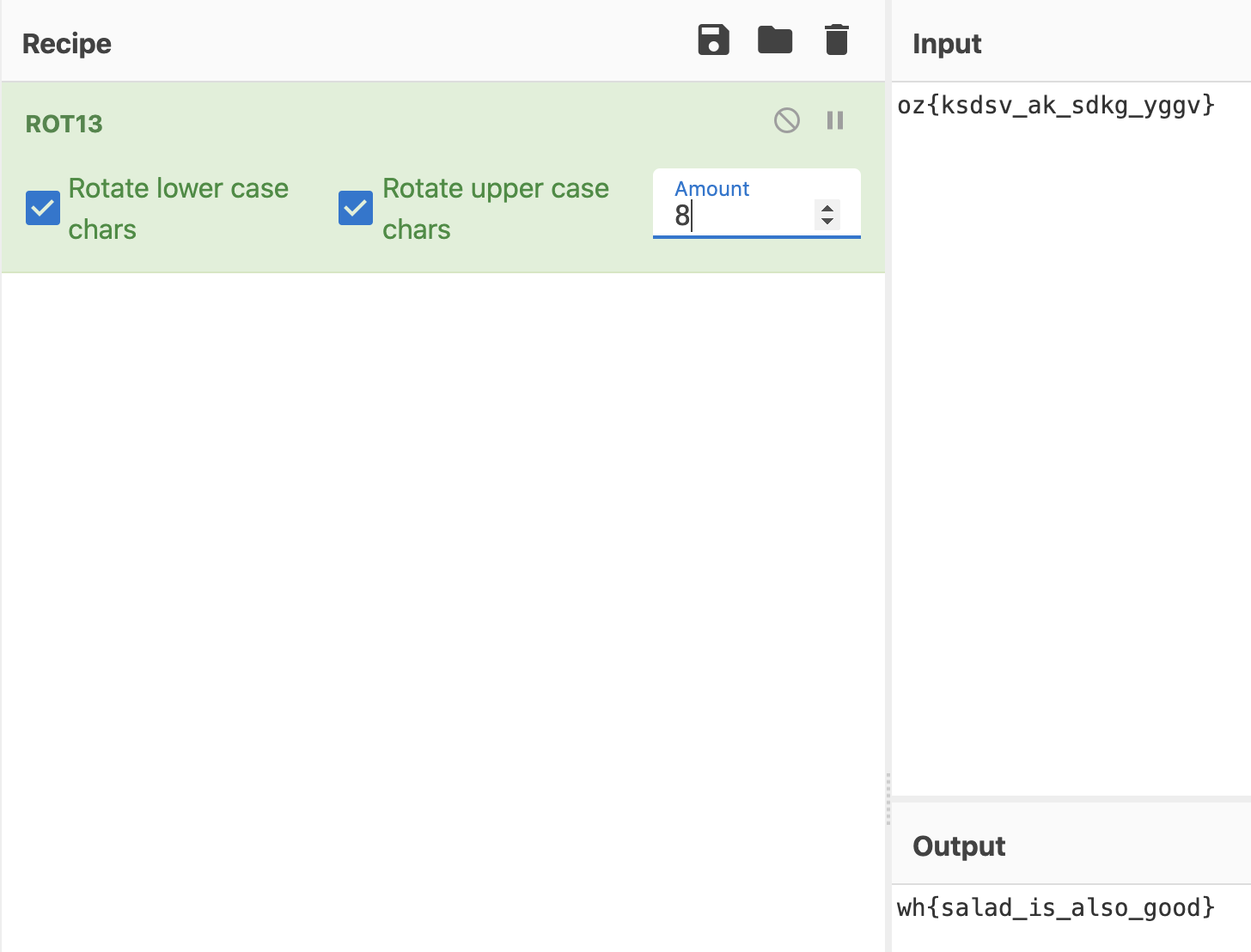
wh{salad_is_also_good}
hex
Points: 100
Prompt: 77 68 61 62 63 5f 74 6f 5f 68 33 78
My Attempt
This is fairly straightforward, just convert hex to ASCII to view the flag. Plenty of tools online but I used this:
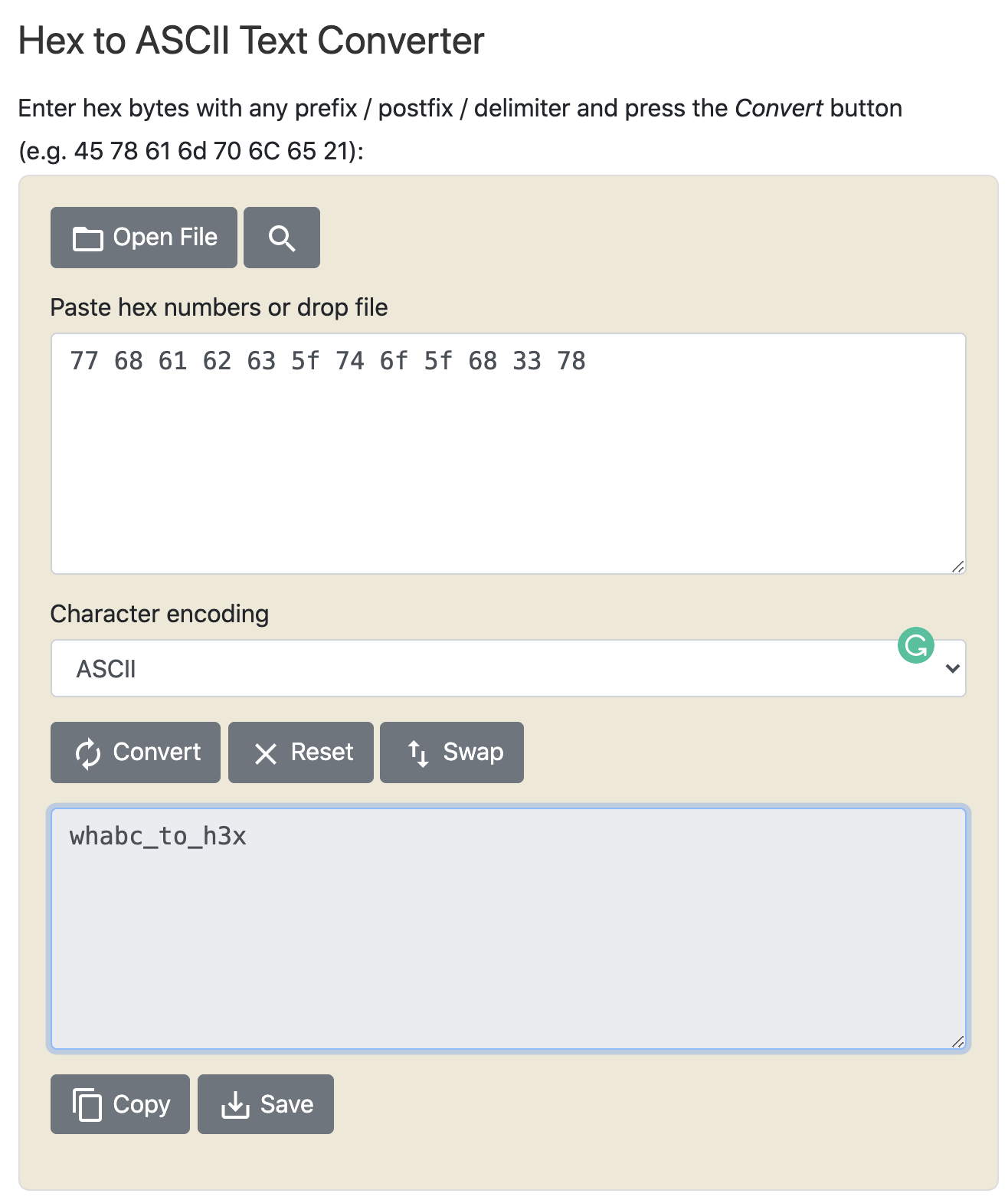
wh{abc_to_h3x}
Forensics
always has been
Points: 100
Prompt: "This document seems corrupted, I guess we should delete it."
File provided: "documents.doc"
My Attempt
Well please don't actually believe them, deleting the file will not give you the flag :D
Opening the file in Microsoft Word would give us an error. Peering into the file using Word, we see the PNG file signature at the top.
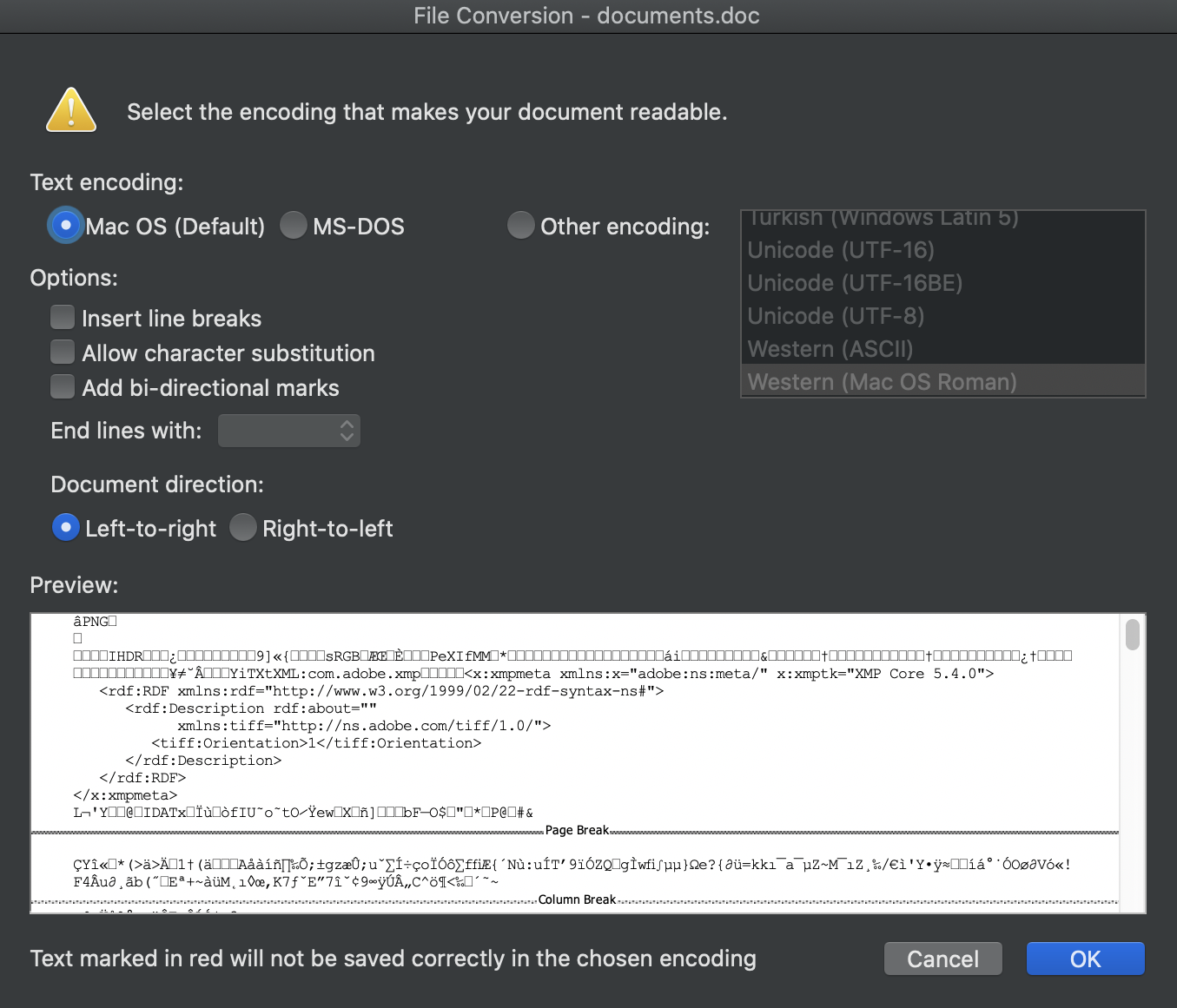
When a file is "corrupted" it is also a possibility where the data is not understood by the application designated to open files with that file extension. To further confirm this, we can run this in terminal:
file documents.doc

Now, renaming the file as documents.png instead, opening the image, we get the flag:
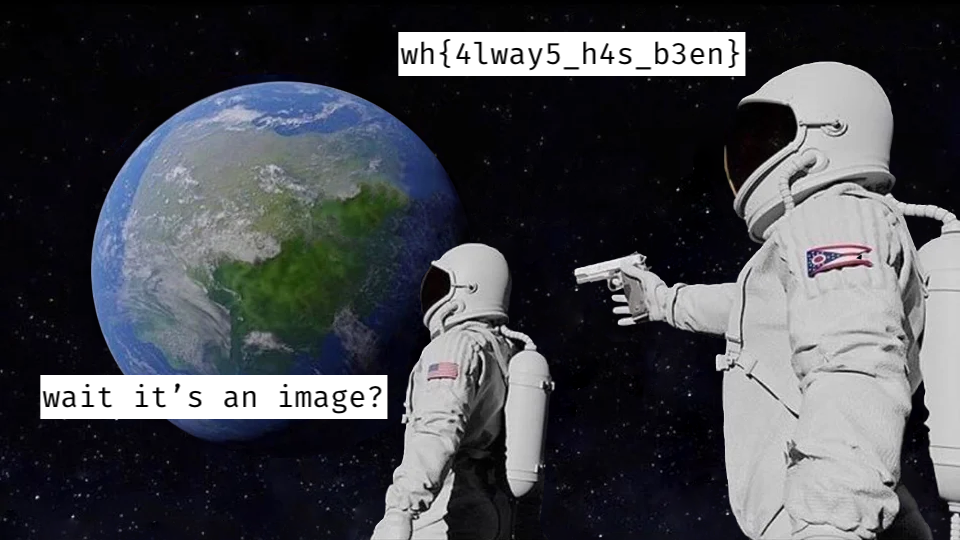
wh{4lway5_h4s_b3en}
internal text
Points: 100
Presented with a question: "Data is just 0 and 1 right?"
File provided: "okay.png"

My Attempt
Taking the time to understand the question, we do know that data is represented in binary to computers.
However, data is represented to us through certain character-encodings, the fastest way to view binary data and see if it represents any legible string would be to just make use of the terminal:
cat okay.png
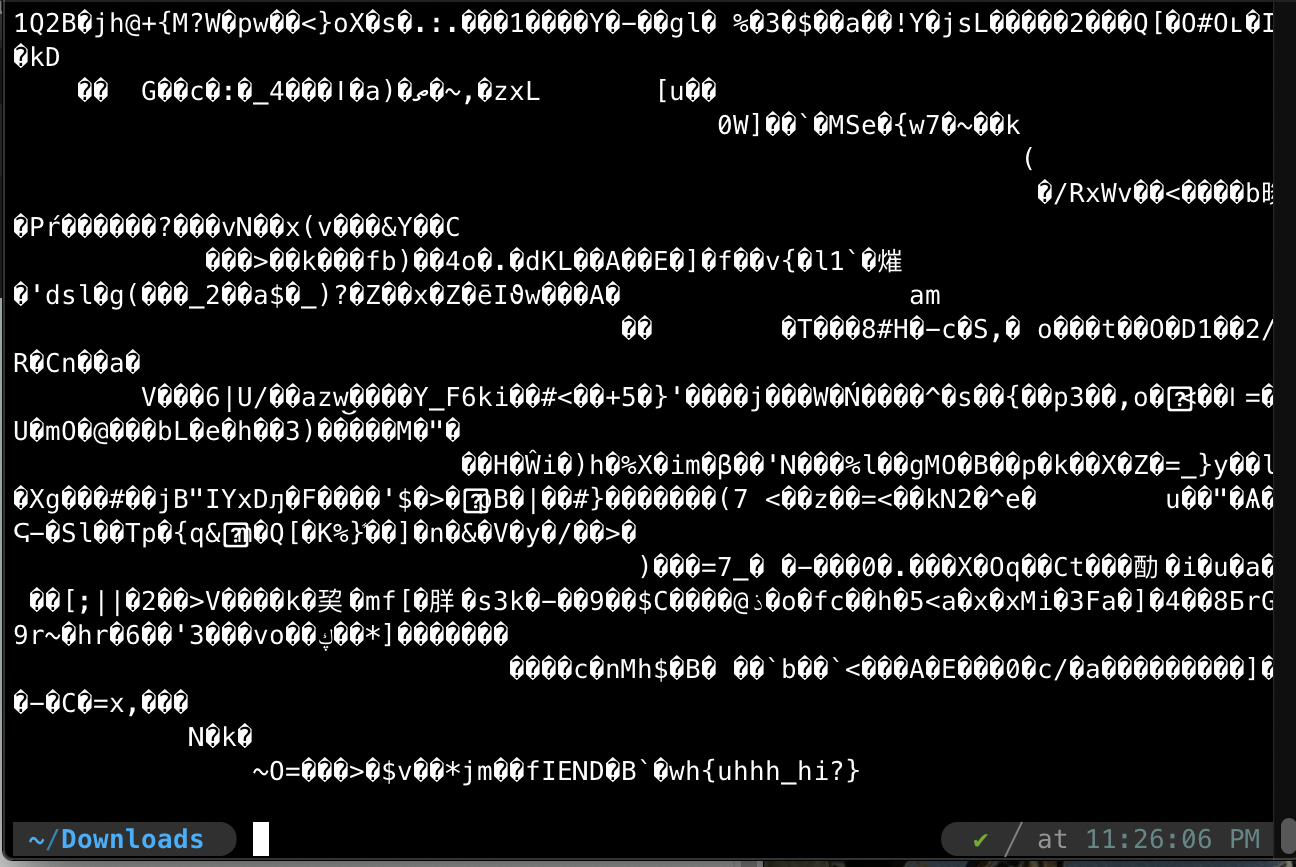
We are then presented with the flag at the end of the file:
wh{uhhh_hi?}
metadata
Points: 100
Prompt: "Who made this?"
File provided: "y_tho.jpg"
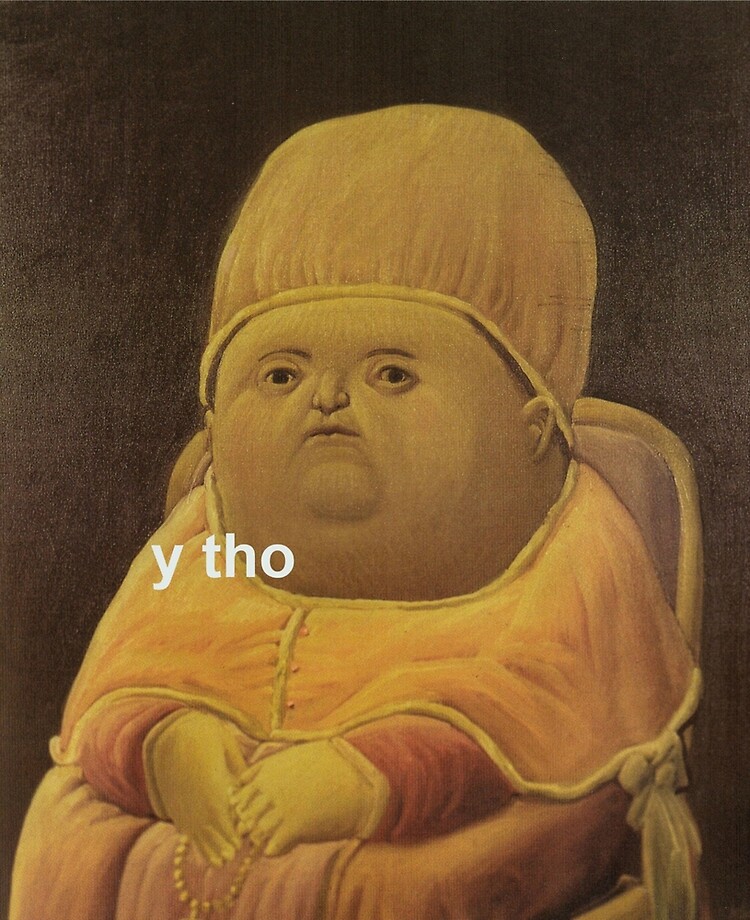
My Attempt
Looking at the challenge name, we can guess that it might have something to do with the EXIF data seeing as it is a *.jpg file.
There is an abundance of EXIF viewing tools, but I chose an online option exifdata.com
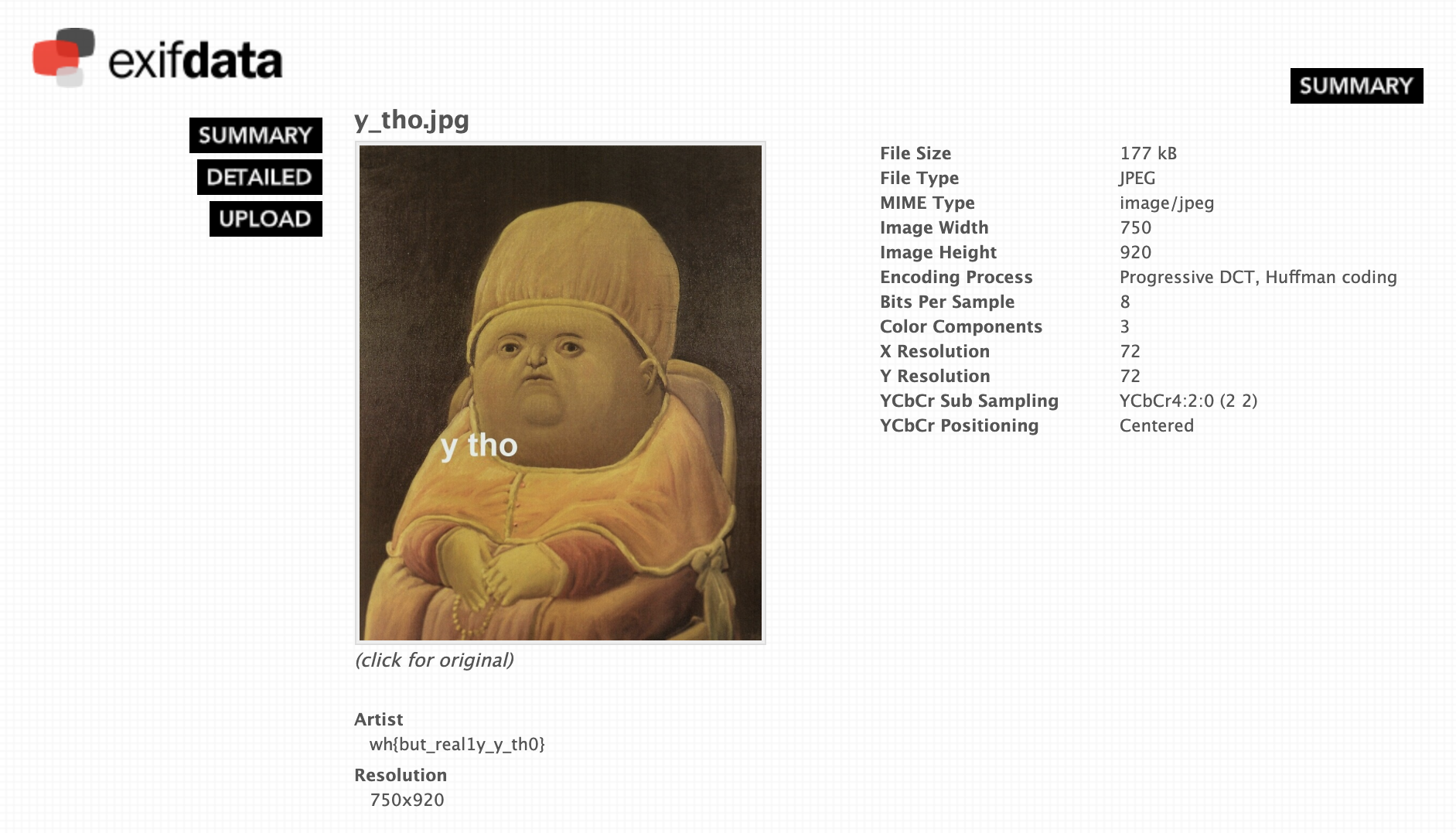
wh{but_real1y_y_th0}
musical walks
Points: 200
Prompt: "Something seems fishy about this music..."
File provided: "megalovania.mp3"
My Attempt
Now I was lost for this one and had to use a hint (oops):
binwalk was the hint, hence the walk in musical walks. This tool should instantly ring a bell, it's used to analyse embedded files!
Opening up my terminal with binwalk installed, I ran this:
binwalk megalovania.mp3
So here, we see that there is an embedded JPEG image within the *.mp3
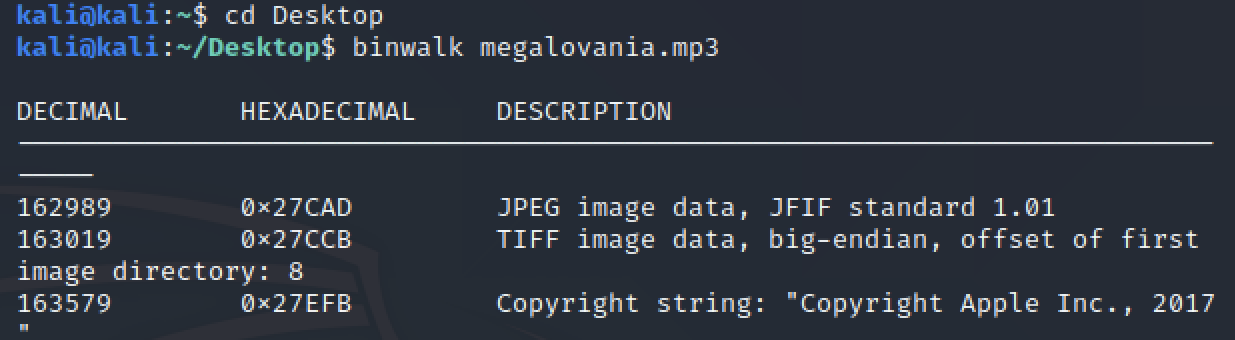
We will now use binwalk to extract it as well. Using this command, I could extract all the contents of the file:
binwalk --dd='.*' megalovania.mp3
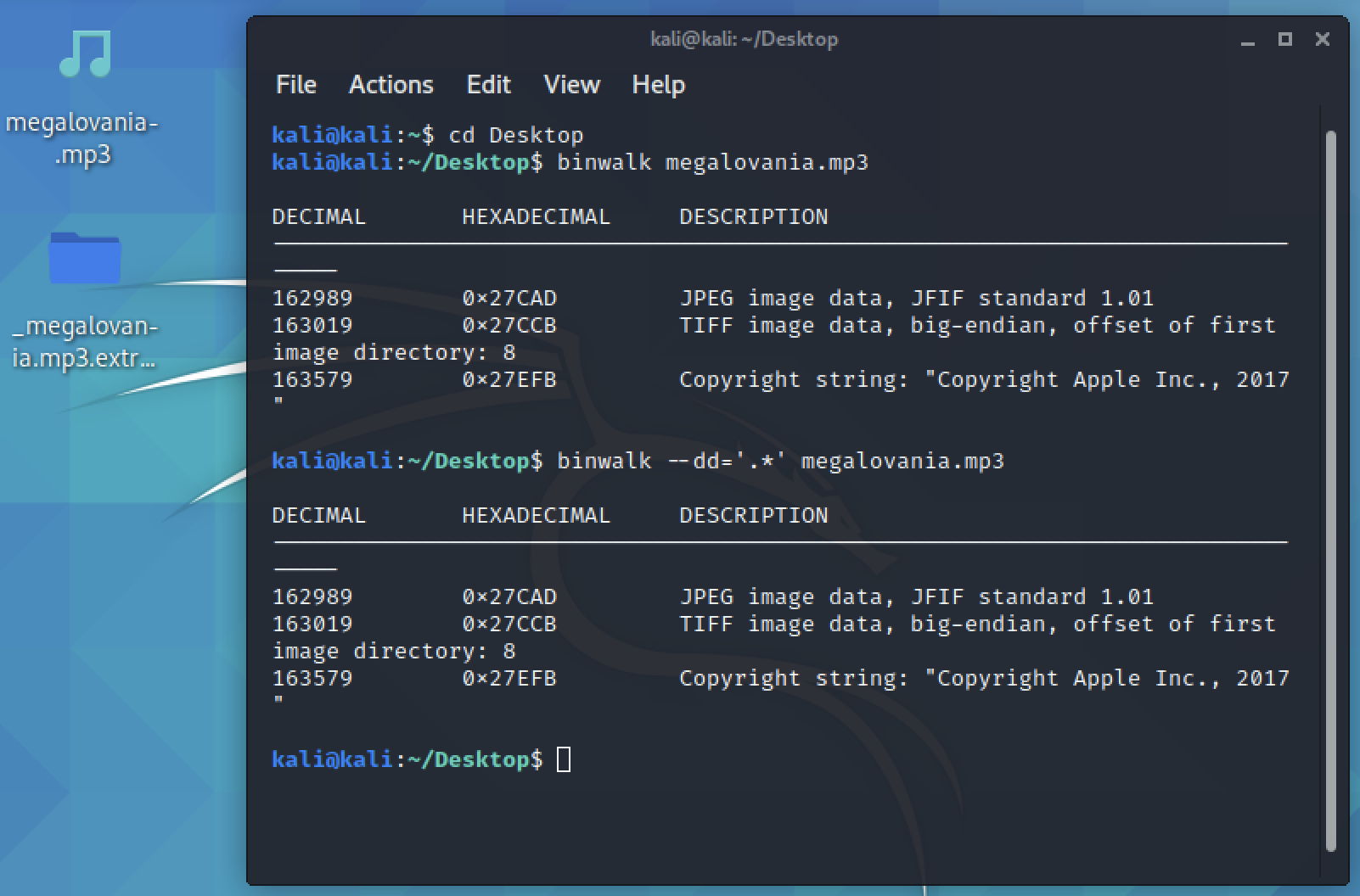
Inside the folder "_megalovania.mp3.extracted", we would then see a file titled "27CAD". Knowing that they are JPEG files, we just needed to add the extension and open them which displayed the flag:
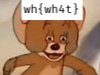
wh{wh4t}
steg-hiding data
Points: 180
Prompt: "i wonder what's hidden...
i wonder what's hidden..."
File provided: "gavinsteg.jpg"

My Attempt
This was a tough one for me, I initially tried a bunch of steganography decoding tools online but didn't found anything fruitful. Most results were either gibberish or failure to decode.
However, I remembered that steghide could store data in a file within a file. It need not necessarily be plaintext or decoded into a legible format instantly. To test this hypothesis, I used this website https://futureboy.us/stegano/decinput.html with steghide as its engine.
First, I uploaded gavinsteg.jpg and chose to view the file in plaintext to see if anything looked recognisable.
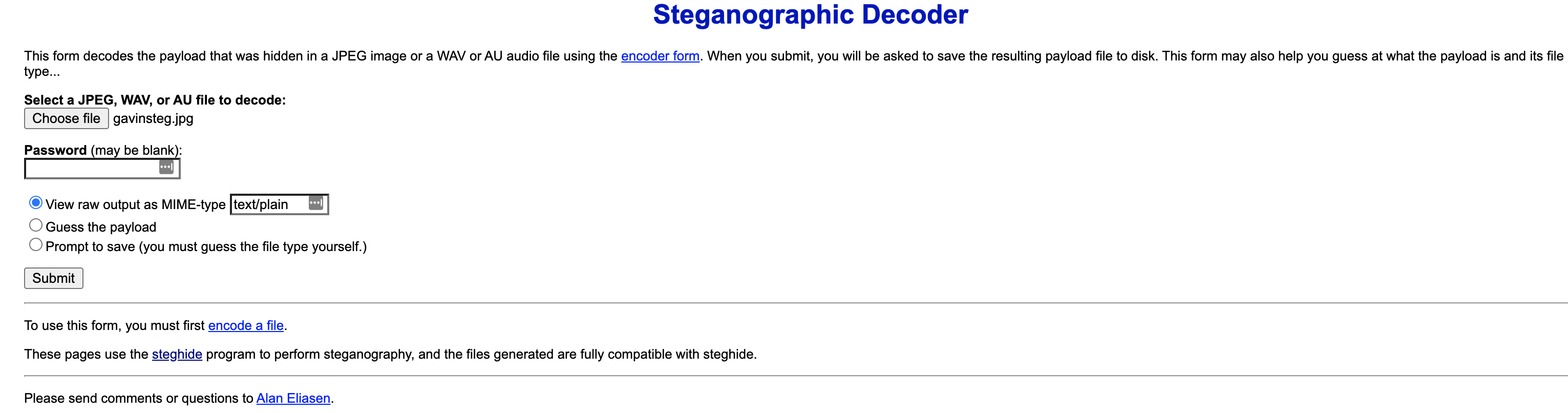
Interestingly we see "JFIF", more on that here. So we know that this is a file, now we save it then.
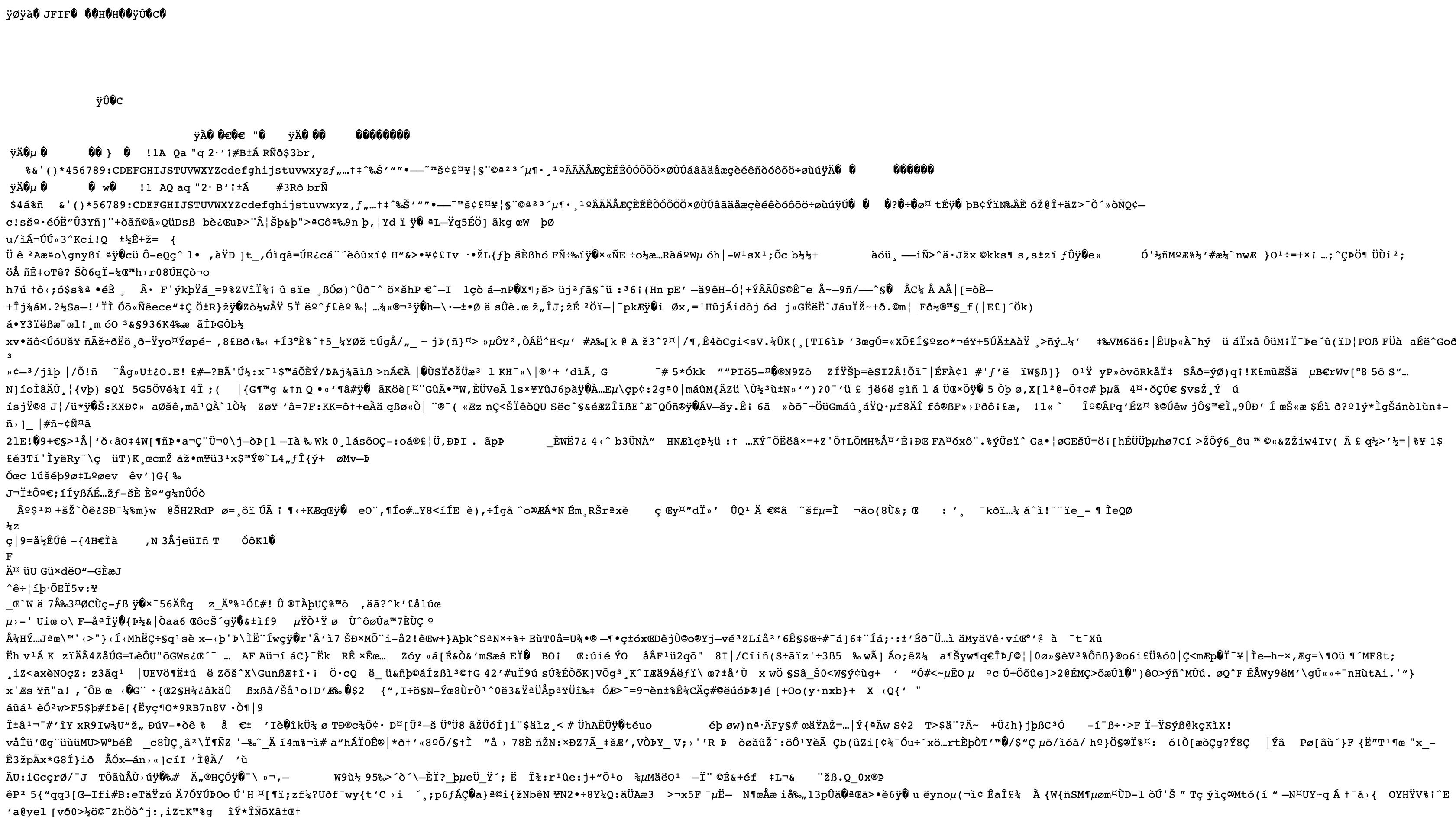
Using the "Prompt to save", I downloaded the file and renamed it out.jfif For those on Windows, you would probably be able to open this in Paint.
As a Mac user, I had no readily available option, so I converted it to out.jpg to take a look.

Now I was stumped, where do I go from here? If in doubt, throw it into steghide again! Seeing as the conversion from *.jfif to *.jpg might have removed any meaningful data, I did not get any flag from using out.jpg in steghide. Instead, throwing in out.jfif, we get the flag in plaintext:
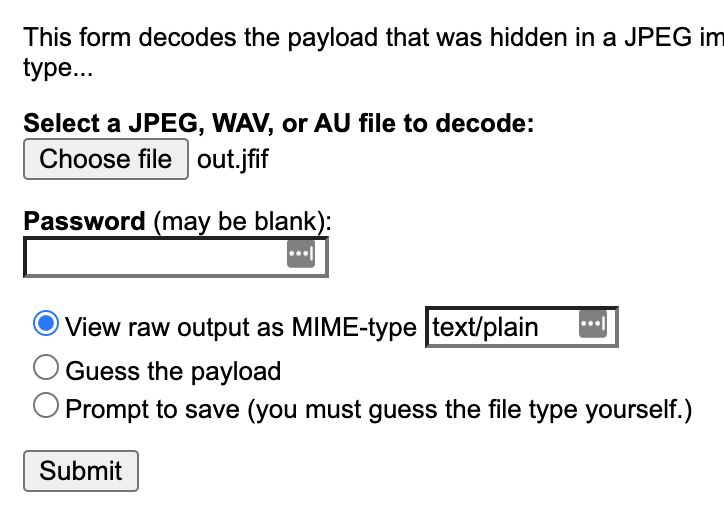
wh{wh4t_ev3n}
Hashing
passwords
Points: 120
Prompt: "We stole a password from someone, but it’s hashed! How will we solve this? The flag should be in the format wh{}."
Files provided: "passwords.txt"
My Attempt
Opening up passwords.txt, we see what looks to be the hash for a password. Instinctively, I went over to crackstation.net, my favourite repository of commonly hashed words. Alternatively, we can use johntheripper for more complex passwords/salted passwords.
Putting the hash in, we managed to get a plaintext result with sha256 as the hashing algorithm:
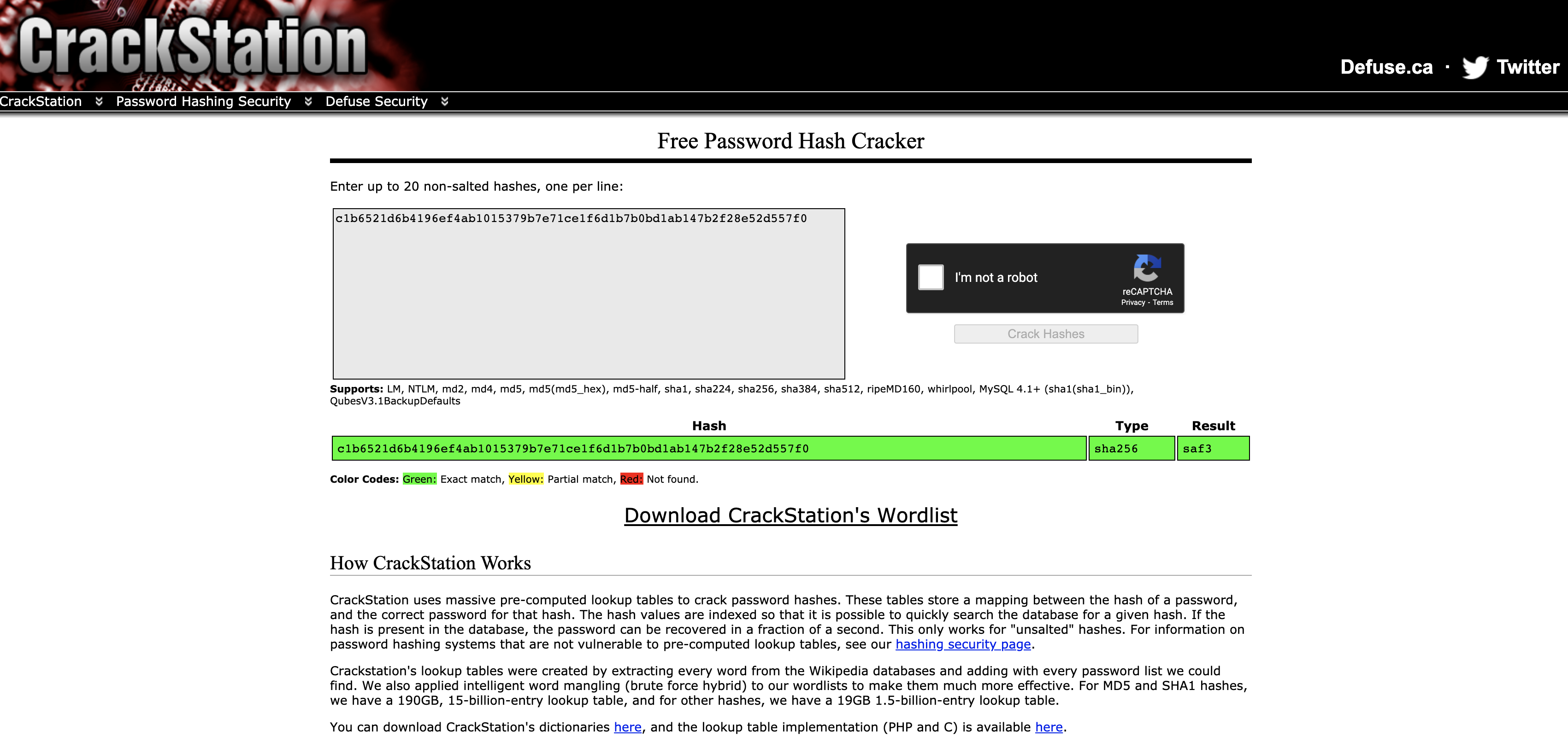
wh{saf3}
Networking
hidden services
Points: 200
Prompt: "There's a rogue service running on this website. Help us find it!"
My Attempt
An invitation to be portscanned, we now open up our terminal to run nmap:
nmap -p 1-10000 www.whitehats.space
We use 1-10000 to increase the scan range from the default well known ports. Note that there is a likelihood the port number may be larger than 10000, but I was lucky here. More on type of ports here.
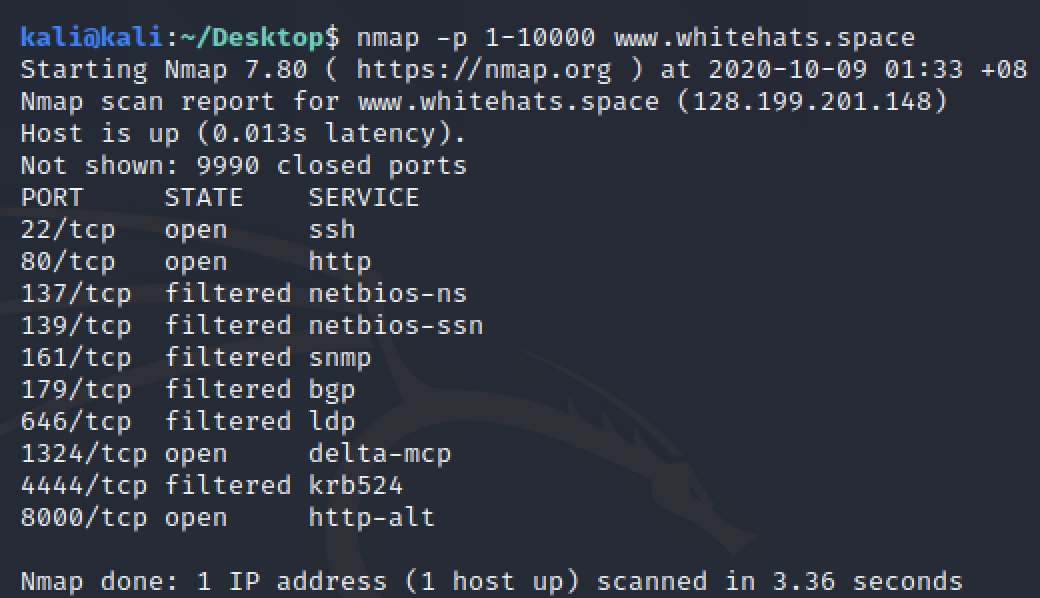
From the result, we already see a suspicious port 22 (from a sysadmin perspective, this should not be open to the Internet) and an unknown port 1324. Attempting to connect to them using nc (netcat), we don't get much success from port 22, but obtain the flag from port 1324:
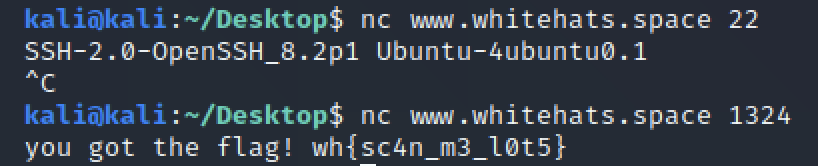
wh{sc4n_m3_l0t5}
how do urls work?
Points: 120
Prompt: "There must be records stored somewhere."
My Attempt
The word records would remind you of the DNS records that contain information of registered URLs. To act on this information, I used a DNS lookup tool online, link here.

wh{i_th0ught_th1s_w4s_s4f3}
OSINT
tweet!
Points: 100
Prompt: "We've found someone interesting, but we only have their name... Who is Iqrah Markham?"
My Attempt
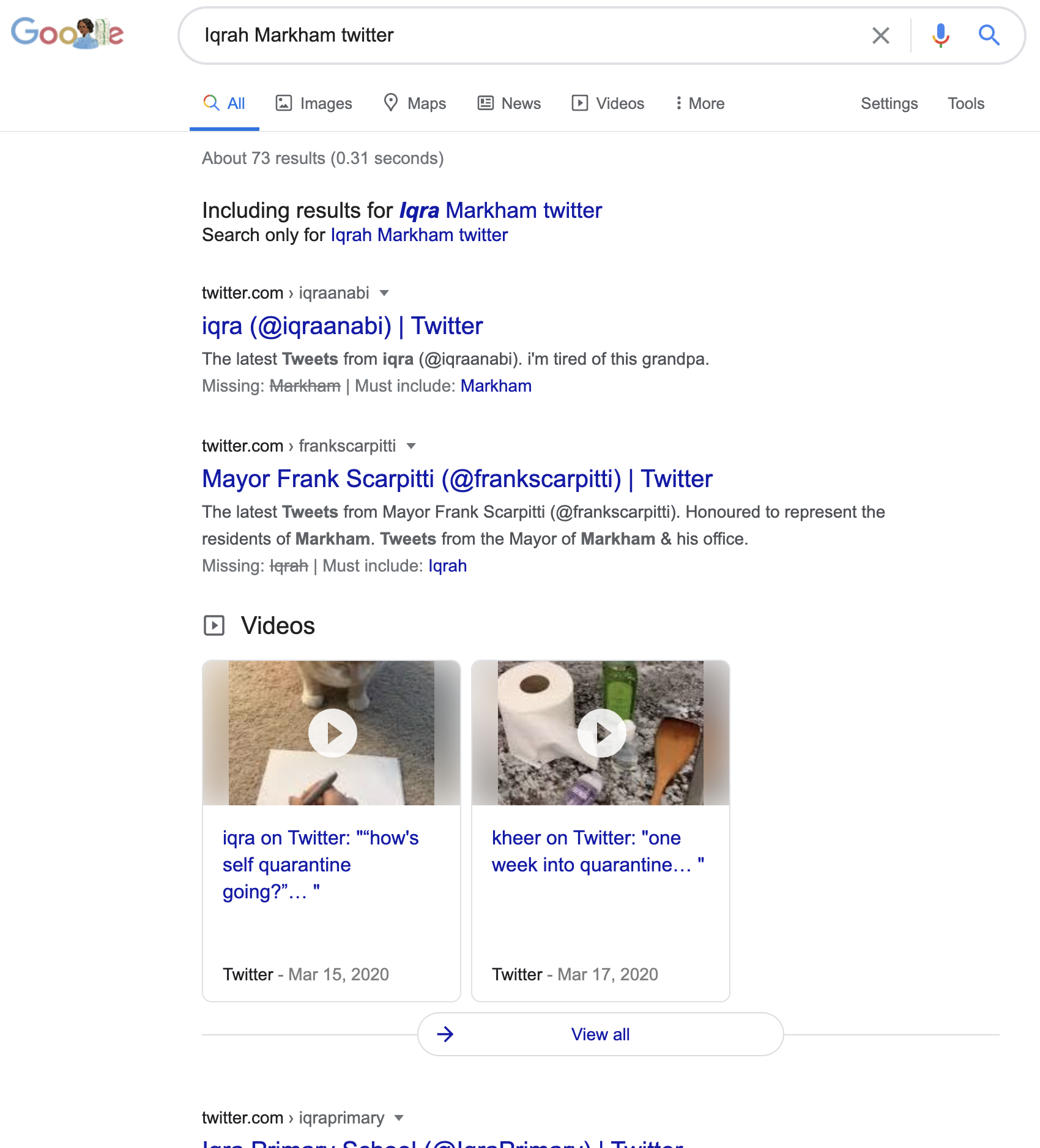
Doing a Google search of Iqrah Markham twitter (twitter as derived from tweet), we are presented with the following that is not of much use:
Tweaking the search to necessitate the inclusion of Iqrah Markham in the results, we now try with "Iqrah Markham" twitter:
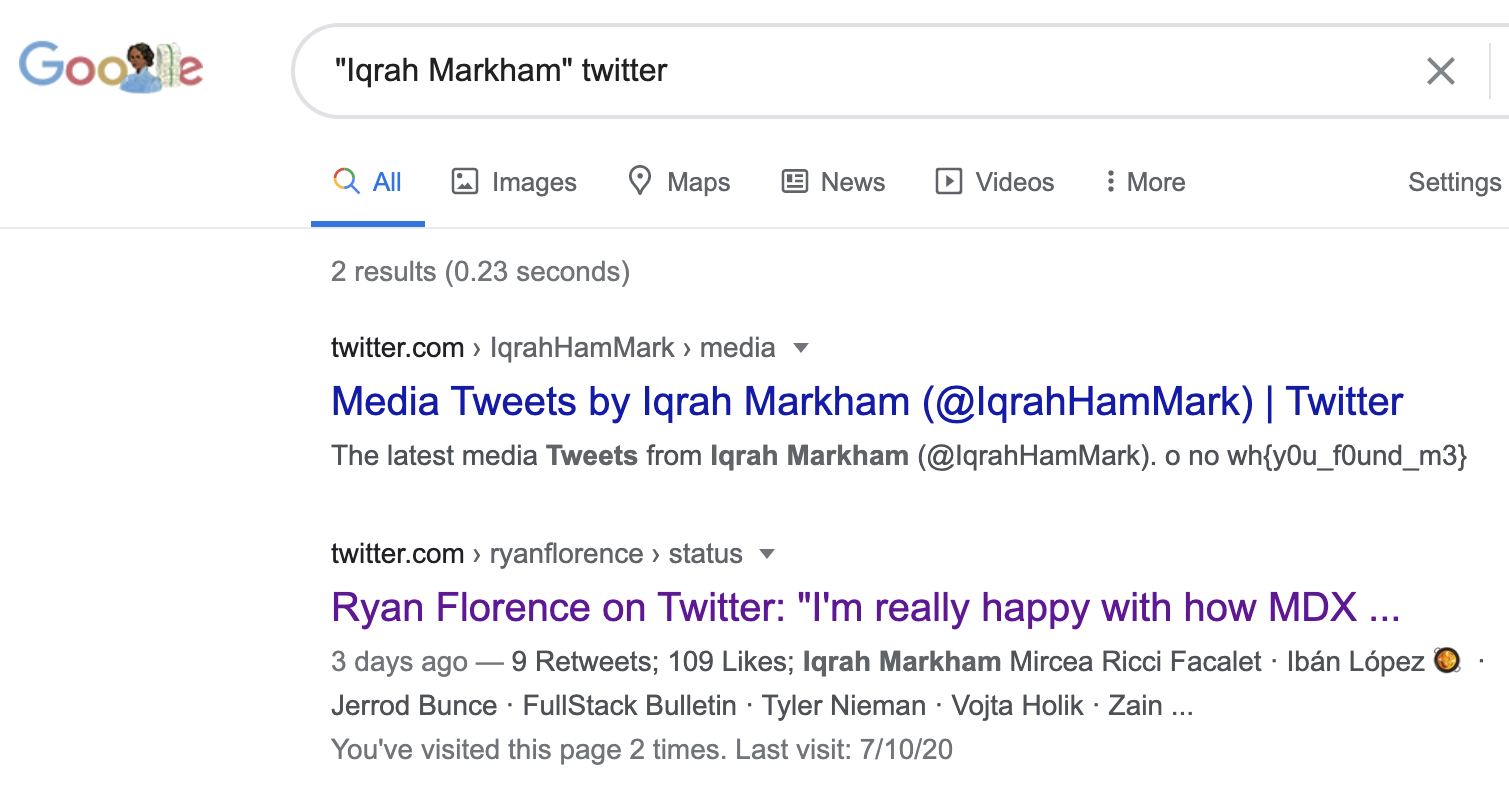
wh{y0u_f0und_m3}
For those curious, this is Iqrah Markham.
unsafe friends
Points: 100
Prompt: "We're pretty sure Iqrah is not working alone..."
My Attempt
In continuation of tweet!, let's stalk Iqrah Markham more!
Taking a look at Iqrah's Followers, we see 3 accounts:
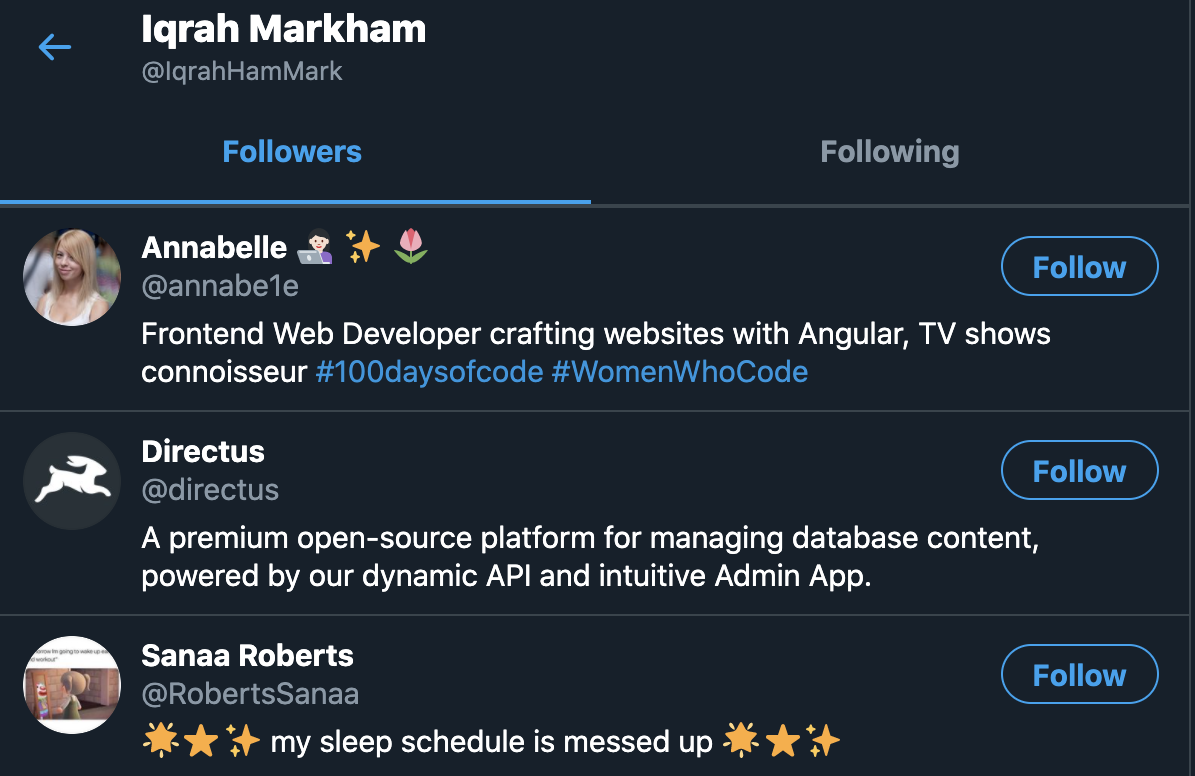
Opening them all up, we would then find the flag in Sanaa Robert's acount:
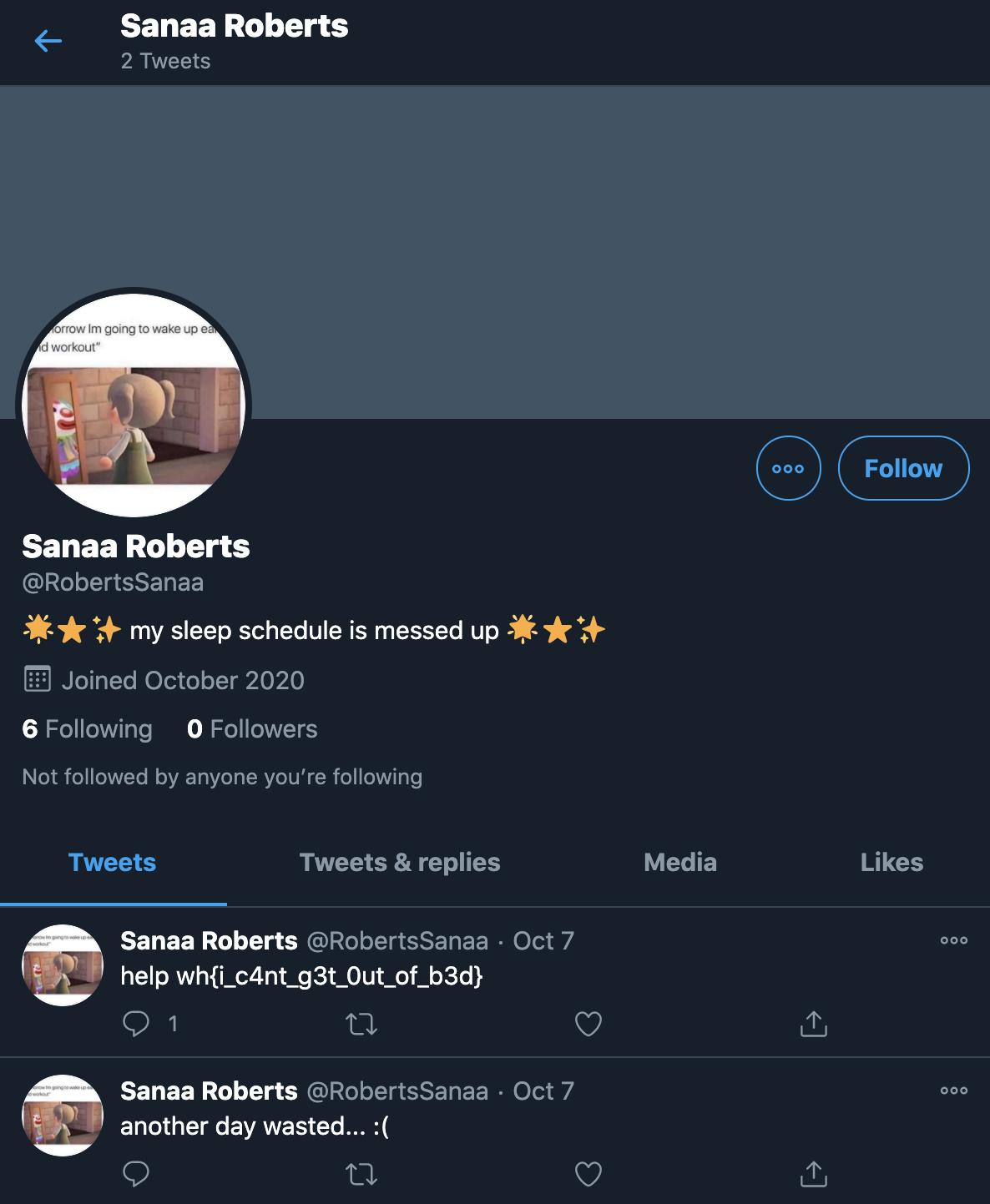
wh{i_c4nt_g3t_0ut_of_b3d}
public events
Points: 110
Prompt: "I wonder how Iqrah is coordinating his actions with his friends... Maybe there is someone else?"
My Attempt
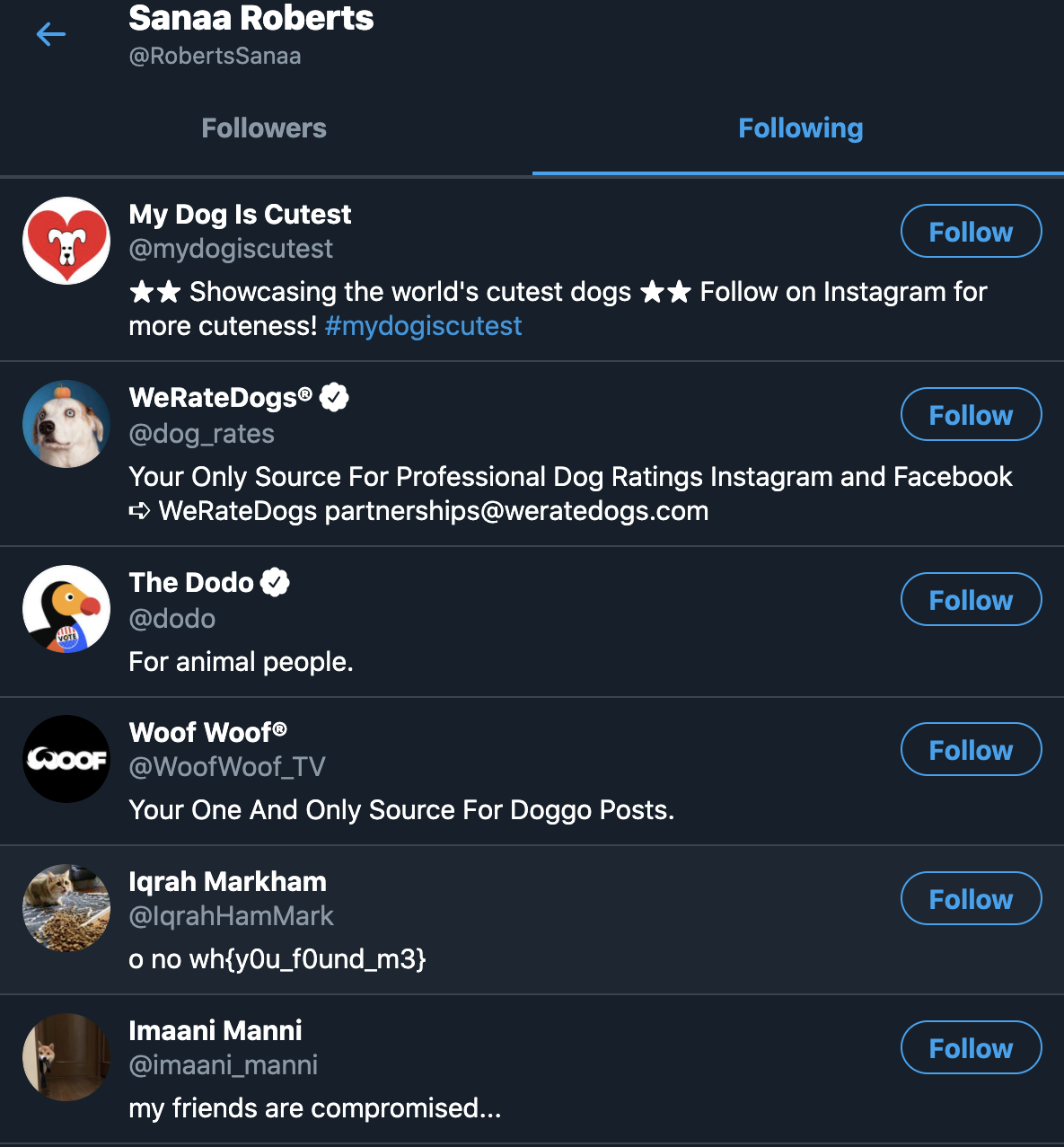
Hmm... Iqrah doesn't have much left for us to stalk.. Let's stalk Sanaa Roberts now~
Opening up the Followings, we see a new friend, Imaani Manni:
Opening the profile, we see a tweet with a link:

Opening the link, we get the flag:
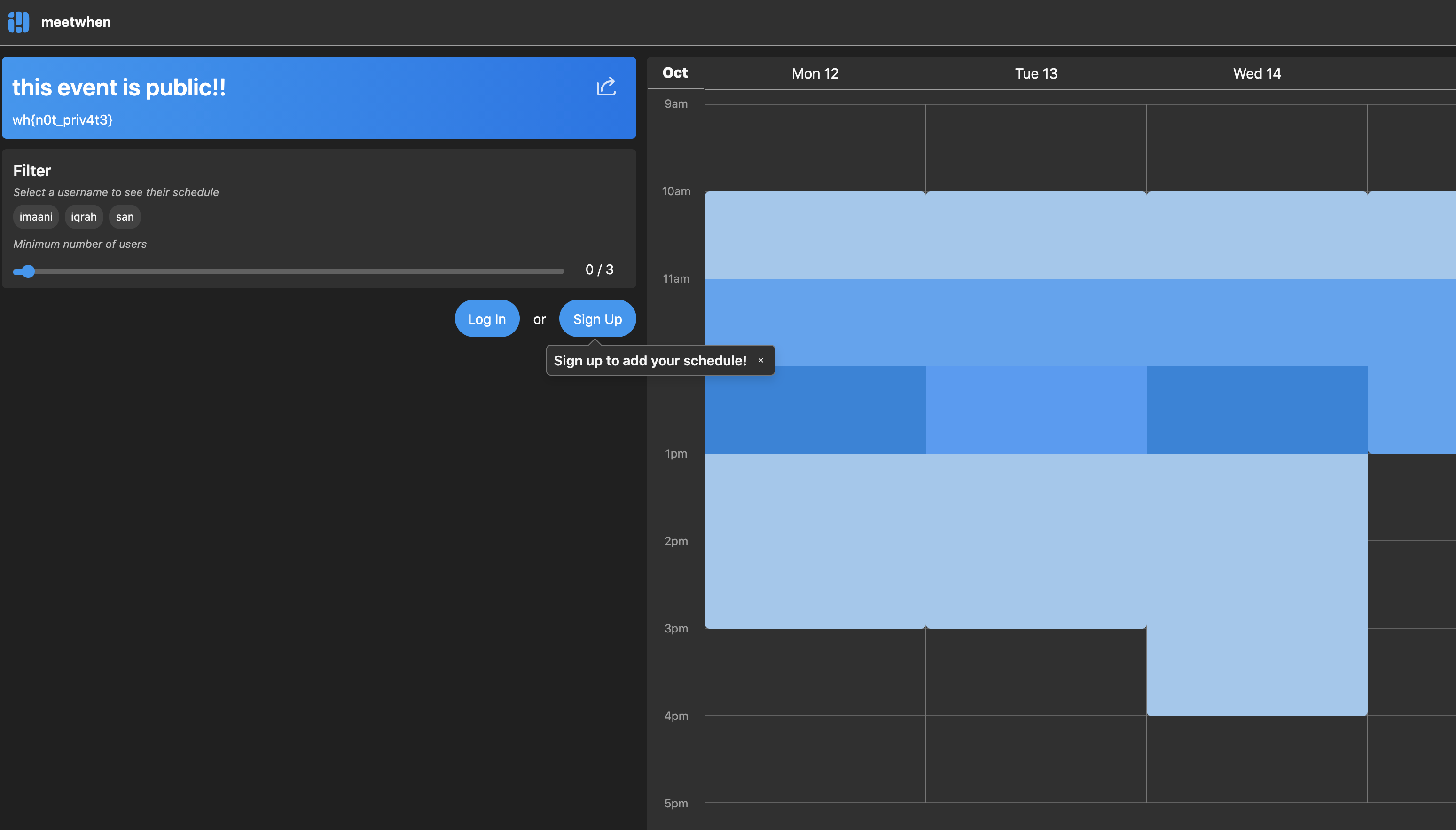
wh{n0t_priv4t3}
social media
Points: 150
Prompt: "There are rumours that the marketing director of Whitehats is trying to send a secret message. Maybe she’s hidden some instructions on our social media?" Hint: "Maybe you should act on the instruction"
My Attempt
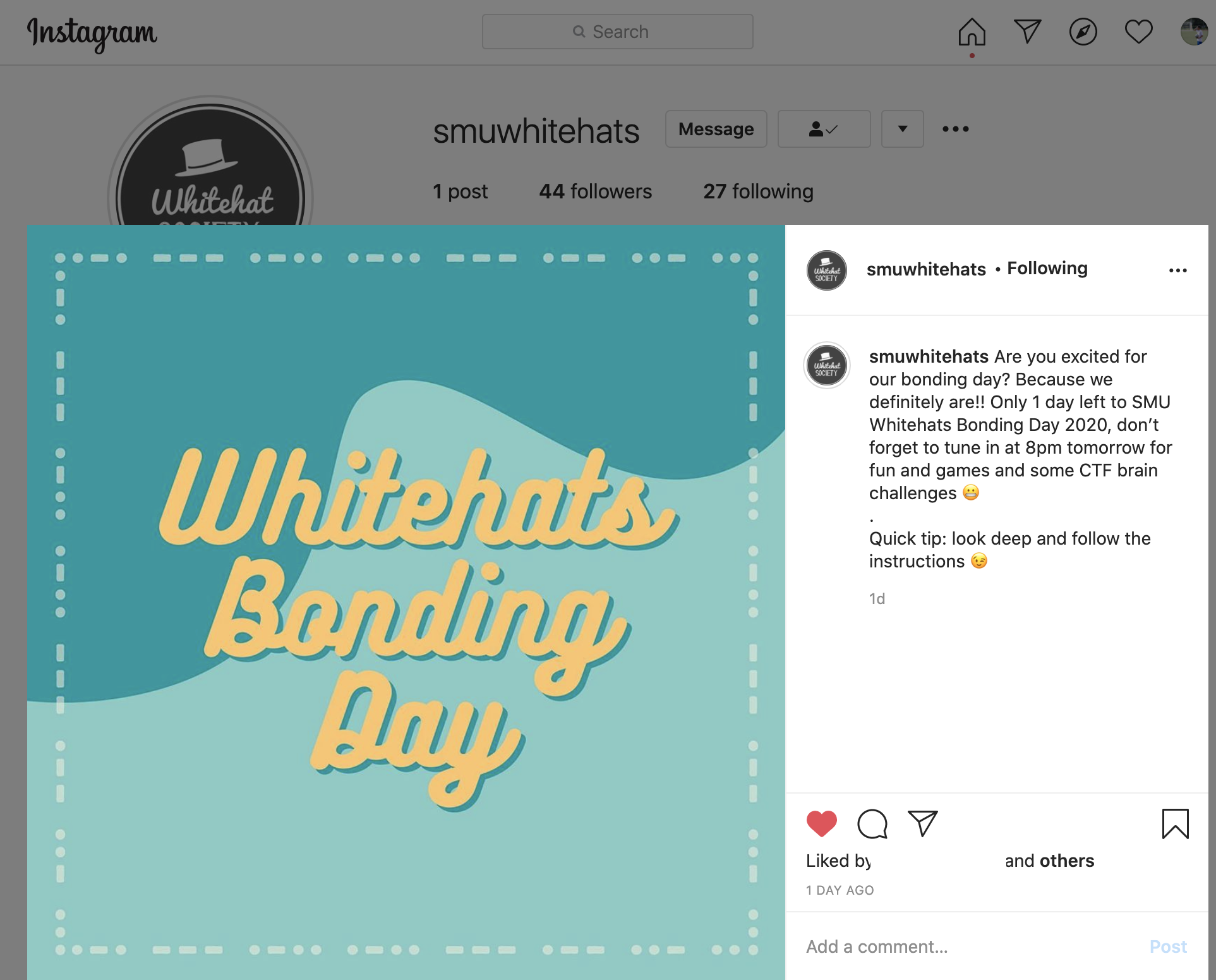
One of the more interesting challenges, we first head over to the Instagram page of Whitehats, as it was the only social media advertised on their website.
There was only one post at the time, which had what looked to be Morse Code as the borders of the image as well as a tip to look deep into the instructions.
Pulling up a Morse Code decoder, this was what I got:
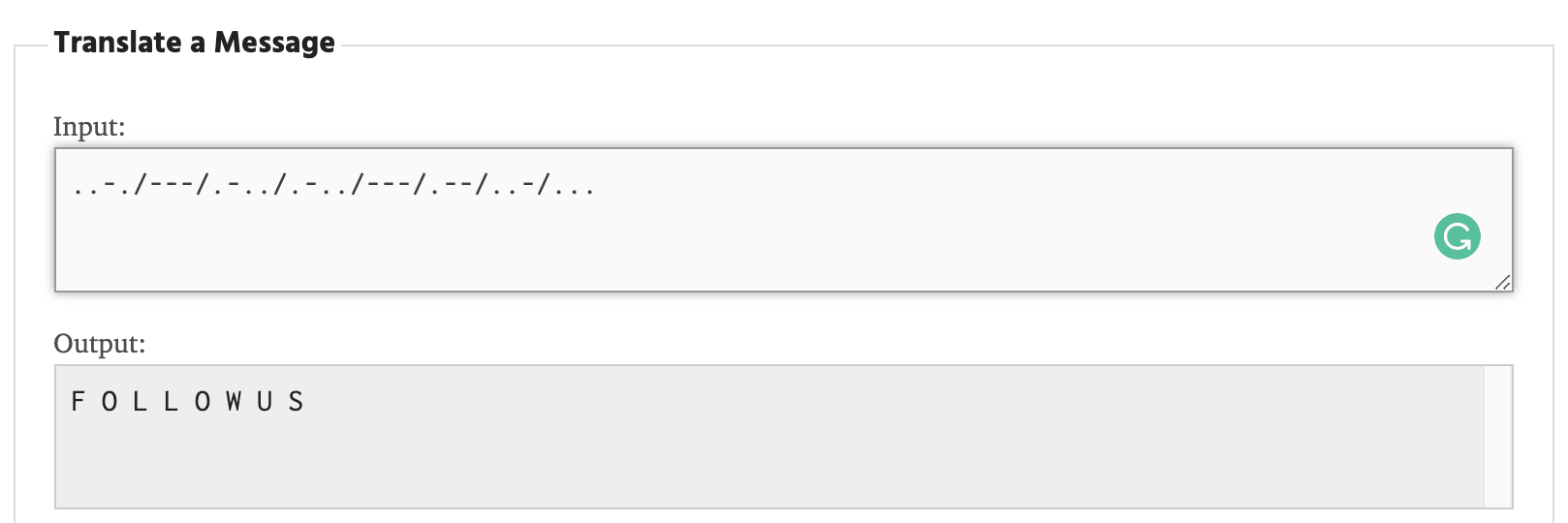
Now using the hint, and following Whitehats, I received a DM and some instructions and obtained the flag:
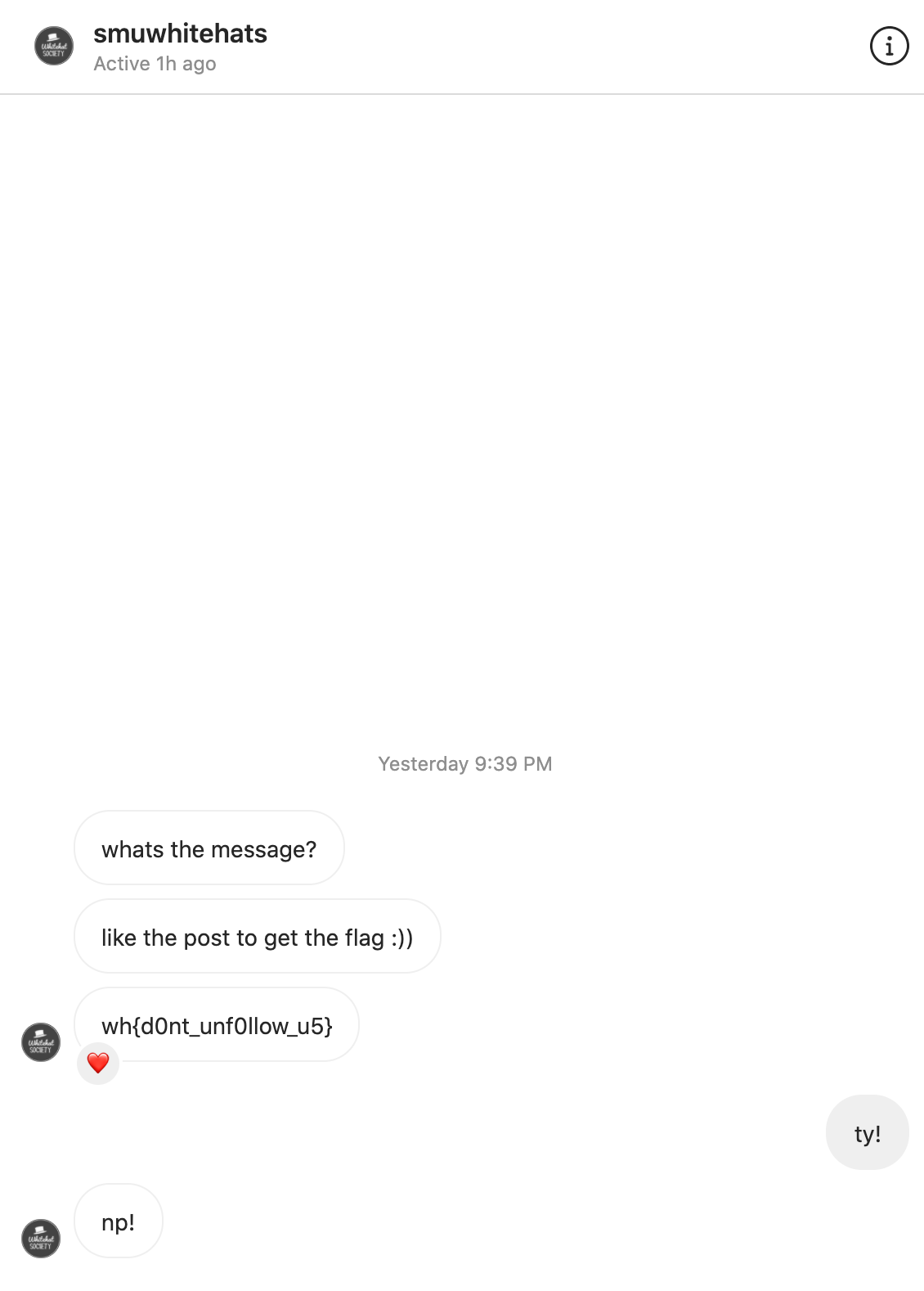
wh{d0nt_unf0llow_u5}
Web
hidden in plain sight
Points: 100
Prompt: "Our homepage seems awfully blank..."
My Attempt
Going to the homepage of the CTF page, we now use the Inspect Element function of Google Chrome (this may vary for other browsers).
Expanding several elements, we can already see the flag in plain sight:
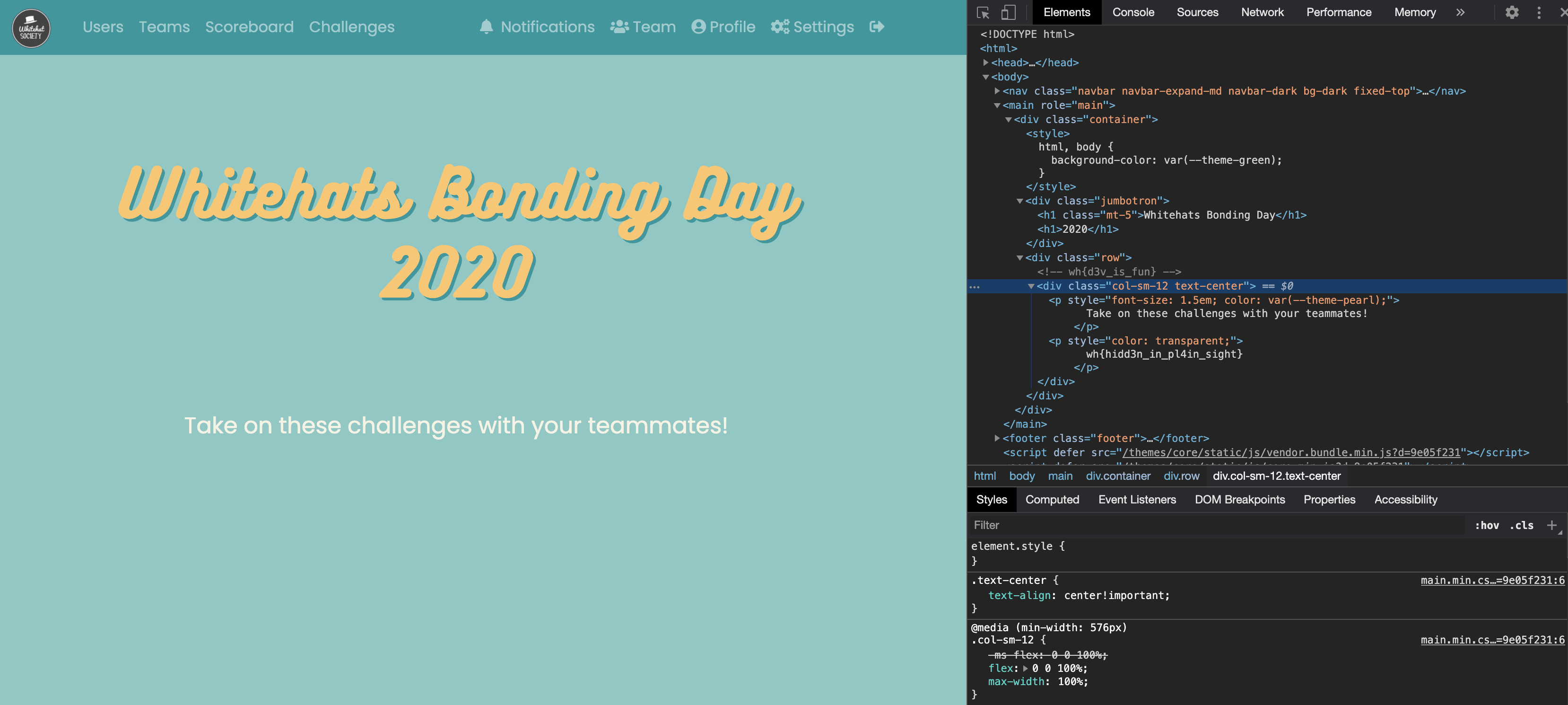
wh{hidd3n_in_pl4in_sight}
leave good comments
Points: 100
Prompt: "Did you know you can leave HTML comments?"
My Attempt
In any language, comments are crucial part of documentation, this applies for HTML as well.
Inspecting the homepage once again, we must look harder now.. Or maybe we just look smarter, let's search for the flag. Using 'wh' as the search input, we find find the flag as a comment, hidden in the HTML:
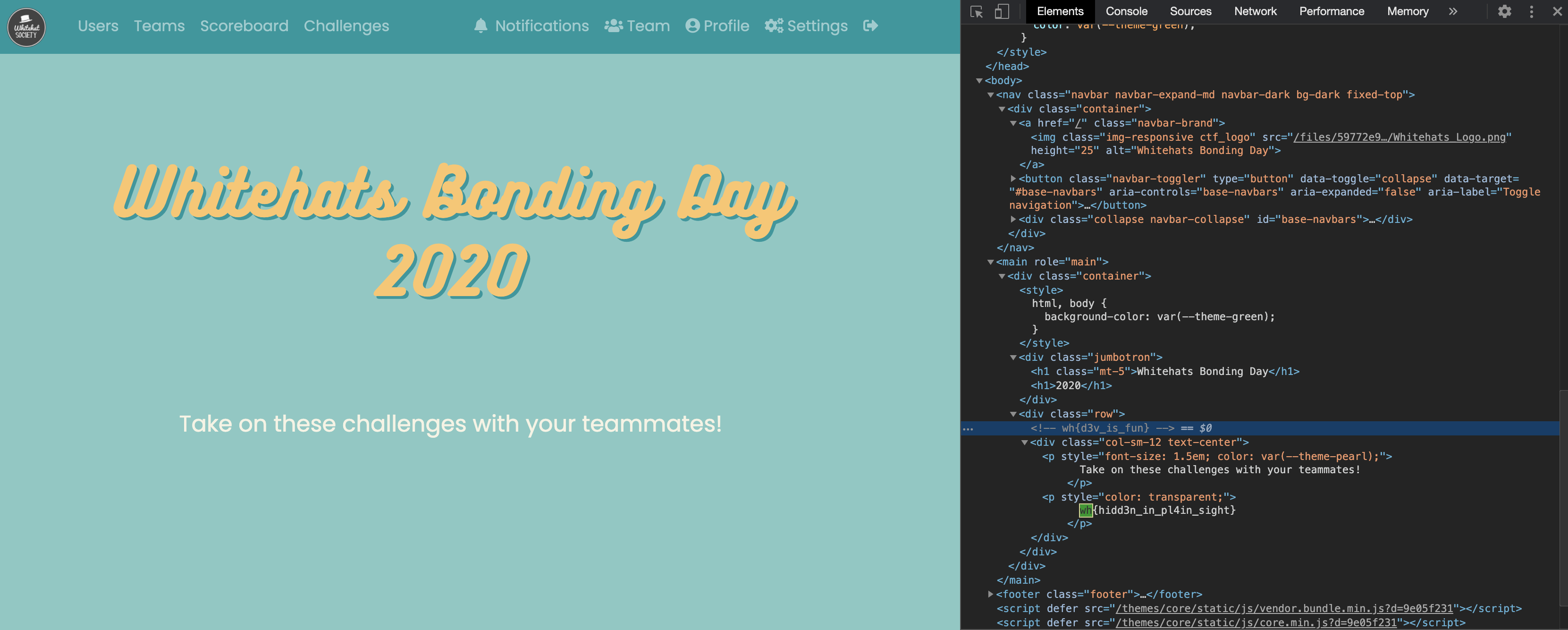
wh{d3v_is_fun}